
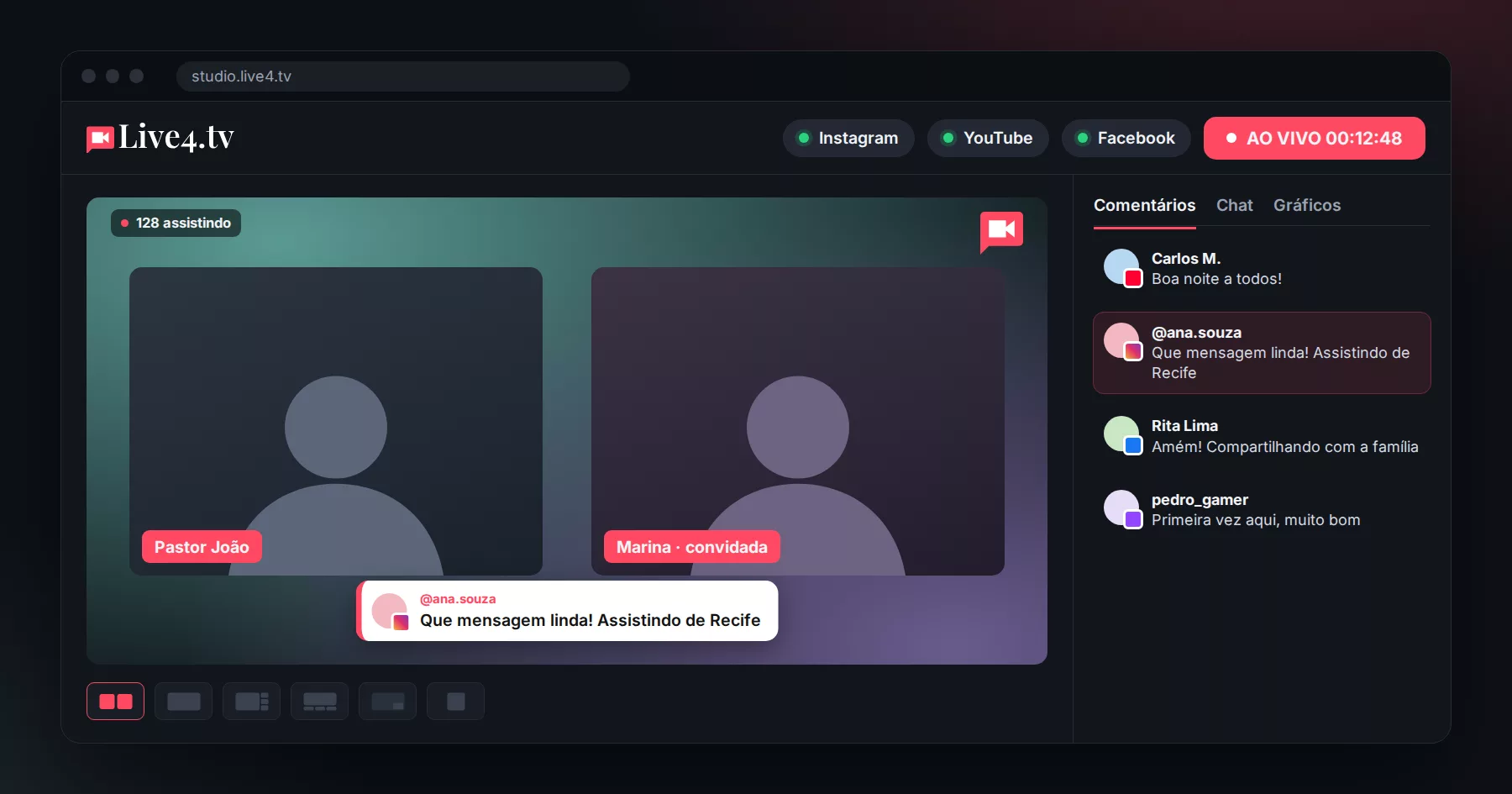
New Live Studio: stream from your browser with guests, your brand and comments on screen
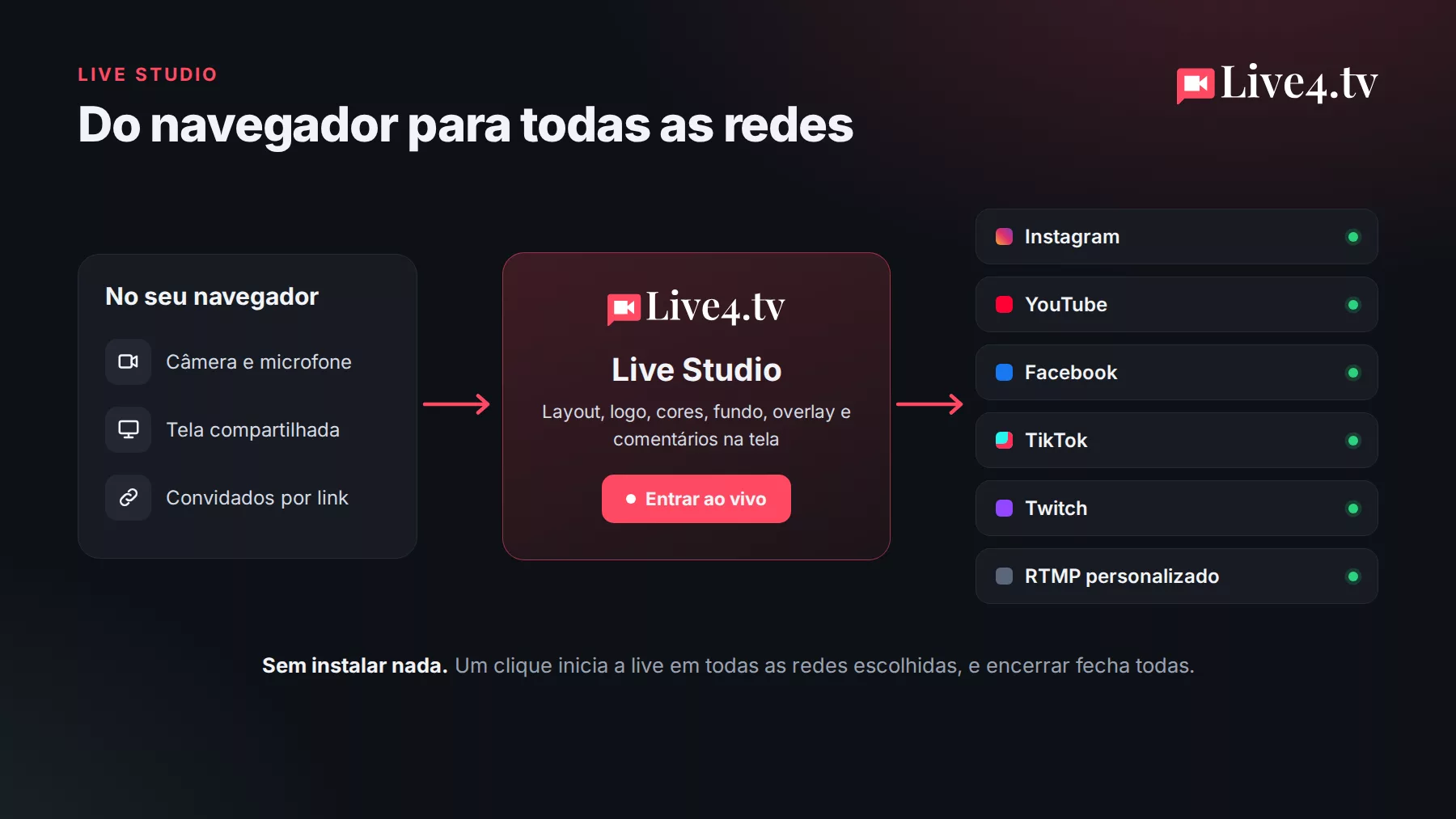
A great-looking live, with guests, your brand on screen and audience comments showing up on the video, used to require OBS, scene setups and a powerful computer. With the new Live Studio from Live4.tv, you do all of that straight from your browser, with nothing to install, and stream at the same time to Instagram, YouTube, Facebook, TikTok, Twitch and any RTMP destination.
What Live Studio is
Live Studio is Live4.tv’s broadcast studio that runs inside your browser. You open your event, turn on your camera and microphone, invite whoever you want, set up the screen to match your brand and go live on every network with a single button.
It was designed for people who don’t want to (or can’t) worry about the technical side: the church media team on Sunday, the radio host, the teacher, the content creator, the company that wants to hold a chat with its customers.
Guests with a simple link
Want to interview someone, do a live podcast or a two-person live? Send the invite link. Your guest joins from the browser, without creating an account and without installing anything.
- Backstage: guests enter the backstage first and only appear on the stream when you put them on air, with one click.
- Private chat between you and your guests that the audience can’t see.
- Screen sharing to show a presentation, a website or a product.
- You can take someone off air or remove them from the studio at any time.
The number of guests in Live Studio depends on your plan:
| Plan | Guests in the studio | Studio quality |
|---|---|---|
| Mini | 1 | 720p |
| Standard | 3 | 720p |
| Professional | 5 | 1080p |
| Premium | 9 | 1080p |
Six layouts for every kind of live
Choose how people appear on screen and switch during the live, without interrupting the stream:
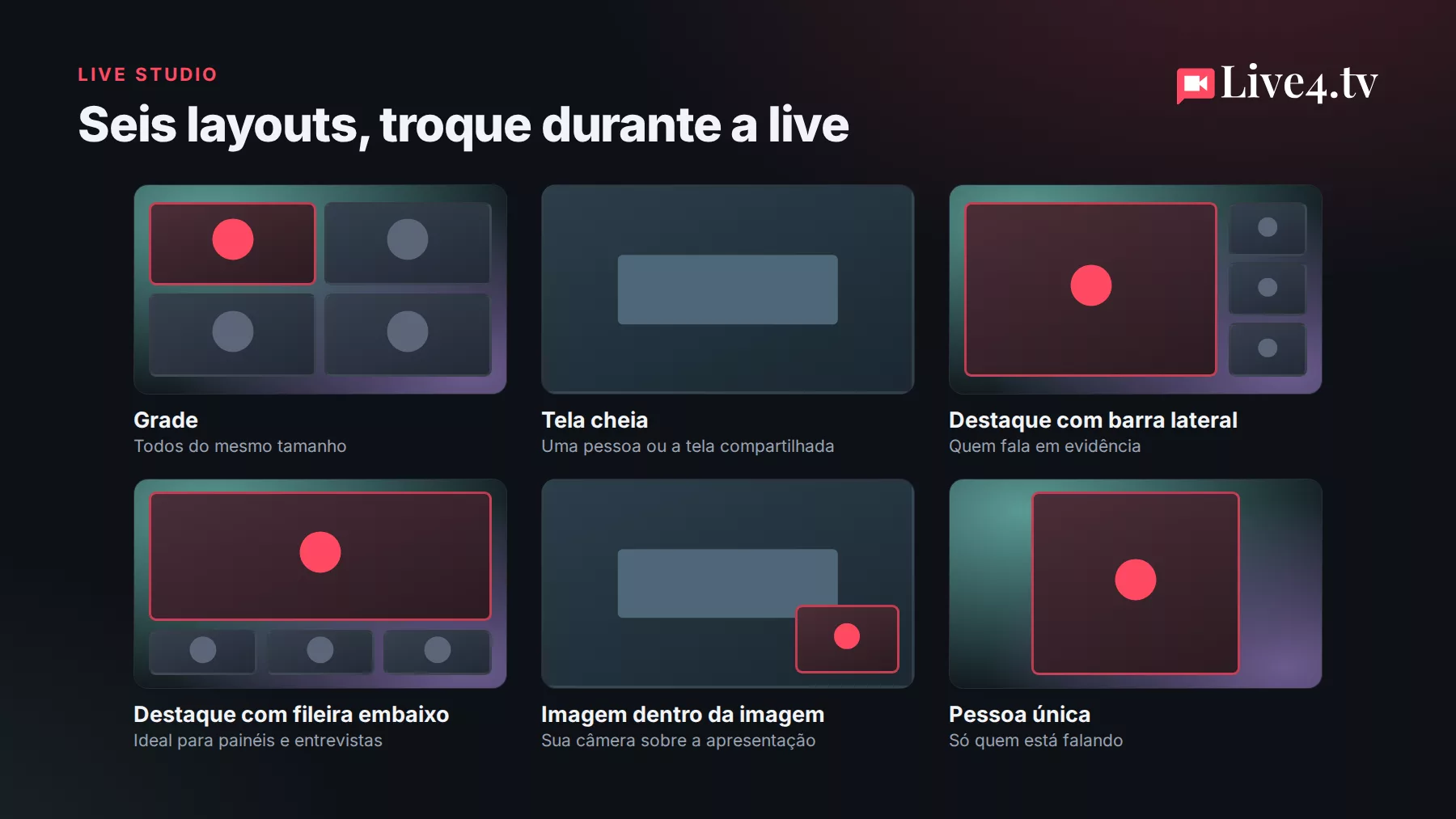
- Grid: everyone the same size, ideal for debates.
- Full screen: one person or the shared screen filling the whole video.
- Spotlight with sidebar and spotlight with bottom row: one person featured and the others smaller.
- Picture-in-picture: perfect for commenting on a presentation with your camera in the corner.
- Single person: only whoever is speaking.
The studio stage shows exactly what is going on air, so you always know what your audience is seeing.
Your brand on screen
In the graphics tab, you give the stream your brand’s look:
- Brand color, applied to the on-screen elements;
- Logo on the video;
- Each participant’s name on screen;
- Overlay (a frame or artwork on top of the video);
- Custom background, with ready-made templates or your own image;
- Viewer counter on the video, if you want to show how many people are watching.
Audience comments on screen, with your brand’s look
Comments from every network arrive in a single panel, with each person’s photo and network. Spotted a great comment? With one click it appears on the video, in your brand colors, for everyone to see, on every network at the same time. It’s a simple way to recognize the people taking part and make your live more interactive.
You can also reply right from the panel.
One button to go live on every network
Choose your destinations (Instagram, YouTube, Facebook, TikTok, Twitch or RTMP) and click Go live. The studio starts the stream and, as soon as the video is on air, starts the live on each network you chose. In the top bar, each network shows whether it is live; if any of them fails, you see it right away and can try again.
When you click End live, the studio ends the lives on every network and then the stream. Nothing is left open without video.
Streaming to Instagram or TikTok? The studio video is horizontal, and Live4.tv adapts it to the vertical format the way you choose in the destination settings.
How to do your first live in Live Studio
- Go to studio.live4.tv and create an event.
- In the event, open Live Studio.
- Allow access to your camera and microphone and check that they are working.
- Under Destinations, choose the networks you want to stream to.
- If you will have guests, send the invite link.
- Choose the layout and adjust the logo, colors, background and overlay.
- Click Go live.
Frequently asked questions
Do I need to install any software?
No. Everything works in the browser, for you and for your guests.
Do guests need a Live4.tv account?
No. They only need the invite link.
Can I still use OBS?
Yes. Live Studio is an extra option. If you prefer OBS, vMix or another program, you can keep streaming via RTMP as usual.
Can I try it before subscribing?
Yes. You can enter the studio and get everything ready (destinations, layout and graphics) before choosing a plan. To go live, just activate a plan, and every plan has a 7-day free trial.
Try the new Live Studio
A live with guests, your brand and audience comments on screen, on every network at the same time, straight from your browser.
Start for free: a 7-day trial on any of our plans.