
Go live from your browser: how to stream with a webcam or phone
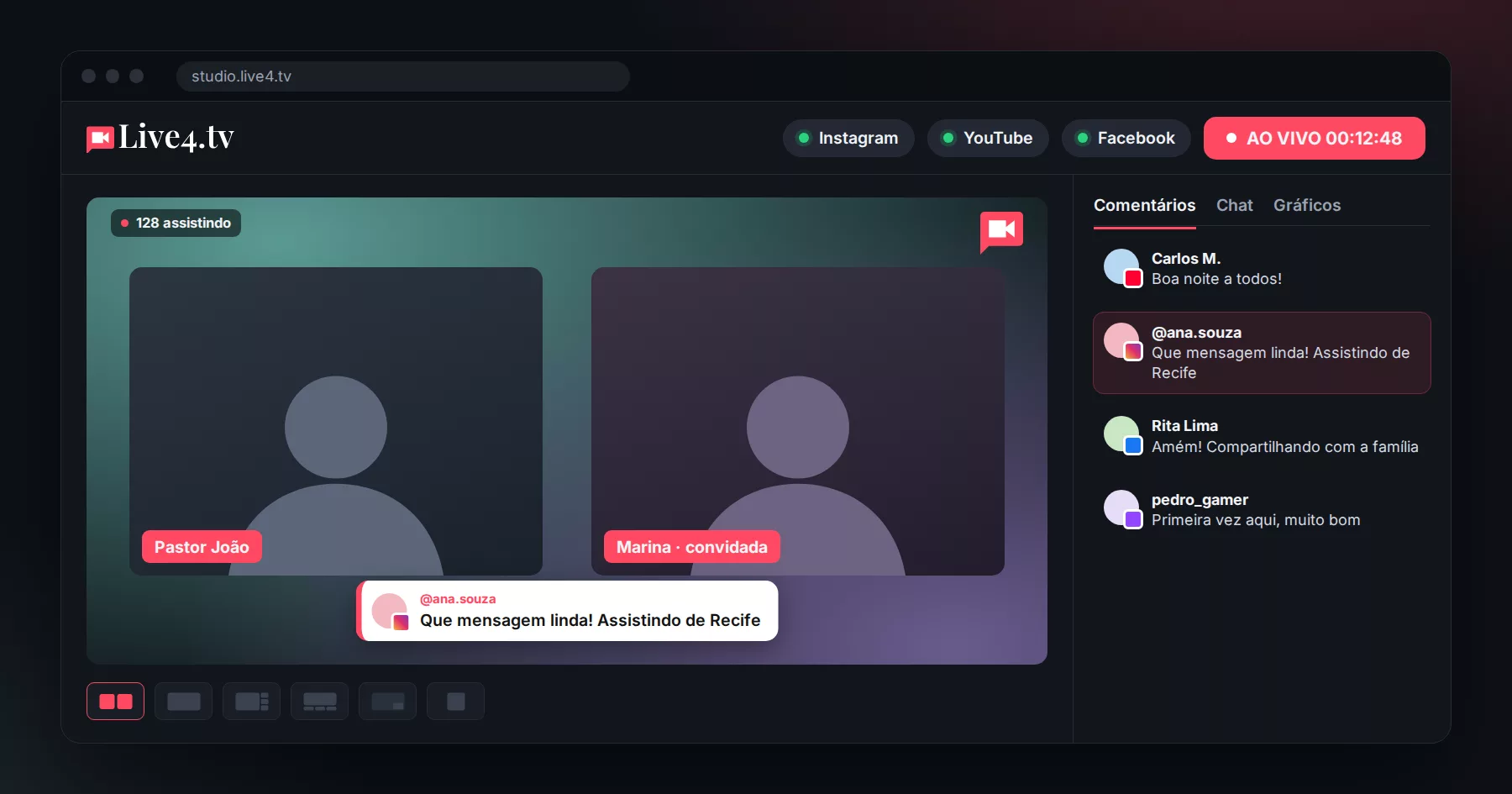
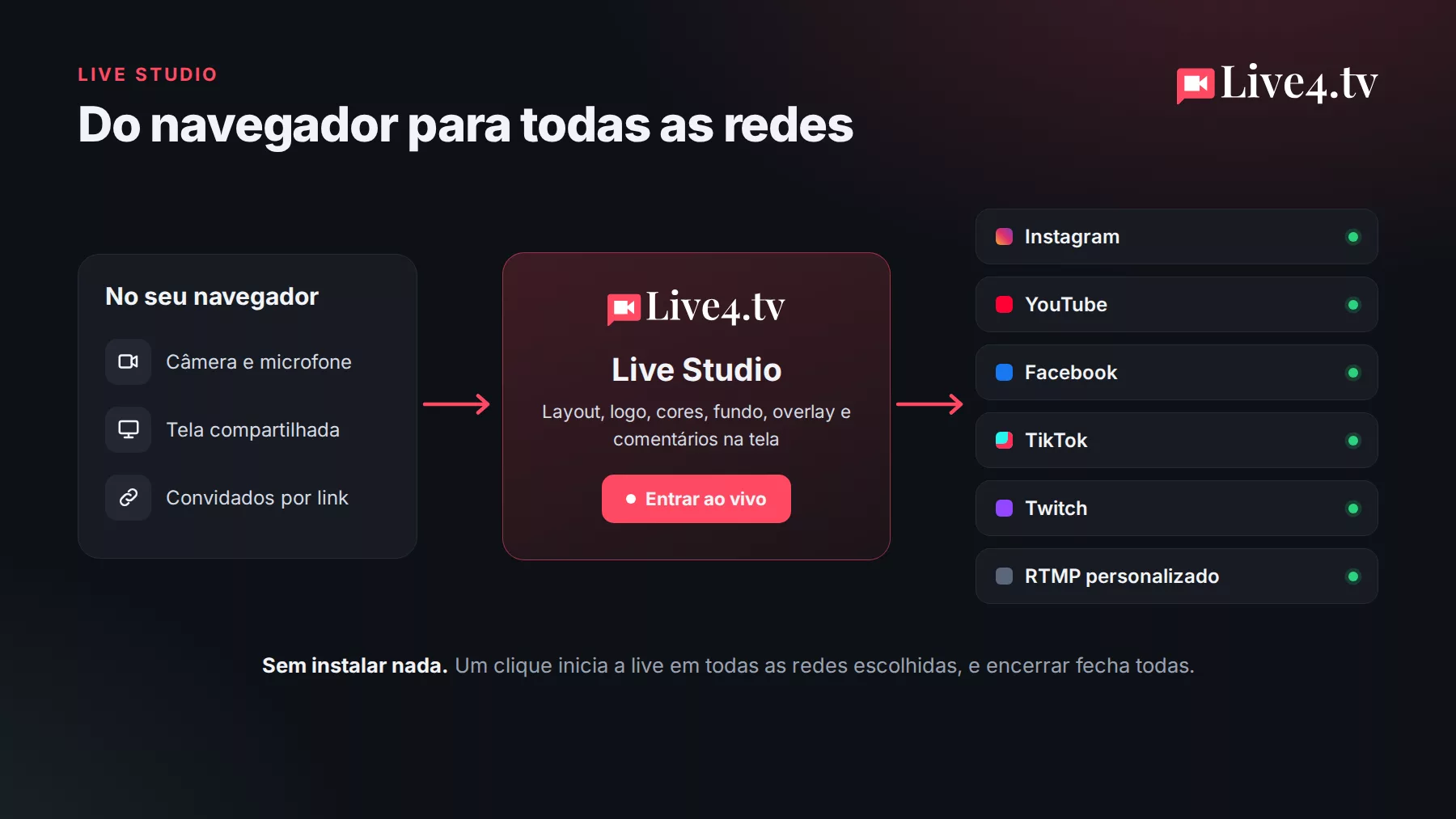
Going live no longer requires installed software, a server and a stream key. With Live4.tv’s Live Studio, you open your browser, turn on your webcam (or your phone camera) and stream at the same time to Instagram, YouTube, Facebook, TikTok, Twitch and any RTMP destination.
In this guide you will see, step by step, how to go live straight from your browser, on a computer or on a phone.
What you need
- An up-to-date browser (Google Chrome, Edge, Firefox or Safari);
- A camera and a microphone: your laptop webcam, a USB webcam, your phone camera or a virtual camera (like the one from OBS or ManyCam);
- A Live4.tv account, which you create at studio.live4.tv.
Step by step: going live from the browser
- Create an event. Go to studio.live4.tv, go to Events and create your event (or use one you already have).
- Open Live Studio. In the event, choose Live Studio.
- Allow the camera and microphone. Your browser will ask for permission. Click “Allow” and check on screen that picture and sound are coming through. On a phone, you can choose the front or rear camera.
- Choose your destinations. Under Destinations, connect and tick the networks you want to stream to: Instagram, YouTube, Facebook, TikTok, Twitch or an RTMP destination (such as LinkedIn, Kick and X).
- Make the screen your own. Choose the layout and, if you like, add a logo, colors, background and overlay.
- Click Go live. The studio starts the stream and, as soon as the video is on air, starts the live on each network you chose. The top bar shows whether each network is live.
To finish, click End live: the studio ends the lives on every network and then the stream.
Going live from your phone
Live Studio also works in your phone’s browser. Open studio.live4.tv in Chrome (Android) or Safari (iPhone), follow the same steps and choose the rear camera to show your surroundings or the front camera to talk to your audience. Tip: hold the phone horizontally, keep the charger plugged in and preferably use Wi-Fi.
What about a virtual camera?
If you use OBS, ManyCam or another program that creates a “virtual camera”, it shows up in Live Studio’s camera list like any webcam. That way you get your program’s scenes and, at the same time, the studio’s features, such as guests and on-screen comments.
Instagram and TikTok in vertical
The studio video is horizontal. For Instagram and TikTok, Live4.tv adjusts it to vertical format the way you choose in the destination settings.
Can I still use a server and stream key (RTMP)?
Yes. If you prefer to stream from OBS, vMix, Zoom or another program, your event still has a server and stream key. Live Studio is one more option.
Want to go further?
In Live Studio you can also invite guests by link, share your screen and show audience comments on the video. See it all in the post New Live Studio: stream from your browser with guests and your brand on screen.
Start free: 7-day trial on any of our plans.