

The only way that works to go live on Instagram from your PC
If you are looking for a solution that still works to go live on Instagram from your PC. You are in the right place. In this article I will show you how to go live with OBS, vMix or even Zoom straight to Instagram. And it is one of the only methods that still work right now.
They all stopped working at the beginning of this week. YellowDuck, Streamon, OBS Plugin for Instagram, Loola.tv, etc… This happened because Instagram released an update blocking the way these platforms integrated with its API. And they have not been able to adapt yet.
But you do not need to panic, because the Live4.tv platform works perfectly with Instagram. In this step-by-step guide I will show you how to go live on Instagram from your PC.
Step 1: Open the Live4.tv app
You can access Live4.tv straight from your browser at studio.live4.tv.
The Live4.tv app works in any browser (Google Chrome, Edge, Firefox, Safari, etc…) and on any operating system: Windows, Mac or Linux.
To continue the tutorial, click here and open the Live4.tv app in your browser.
Step 2: Log in or create a Live4.tv account
The first time you open the Live4.tv app, you will see a login screen.

If you created a user account here on the website, you can log in with the same account, using the email and password you registered.
If you have not signed up yet, you can sign up in the app itself by clicking “Don’t have an account yet? Sign up here!”.
Step 3: Create an event on Live4.tv
As soon as you log in, you will see the Live4.tv events page. There, you can create your first event by clicking “CREATE AN EVENT”.

It is important to know that the information you enter as the event “Title” and “Description” is what will be posted on social networks when you start your live stream.

After creating your Live4.tv event, you will be automatically redirected to the studio screen (as in the image below).

The most important sections of the studio screen are:
Streaming Data:
Where you find the settings for your OBS Studio, so that it streams to the Live4.tv servers.
Streaming destinations:
Here you can set up the networks Live4.tv will distribute your live stream to (multistreaming).
Settings:
In this area you can configure your live stream (screen format for Instagram, YouTube quality, etc…).
Step 4: Set up OBS Studio
If you have not downloaded OBS Studio yet, you can download it by clicking here. After that, you need to set up OBS so that it streams to Live4.tv.
To do that, just open the settings window in OBS Studio by clicking “Settings”.
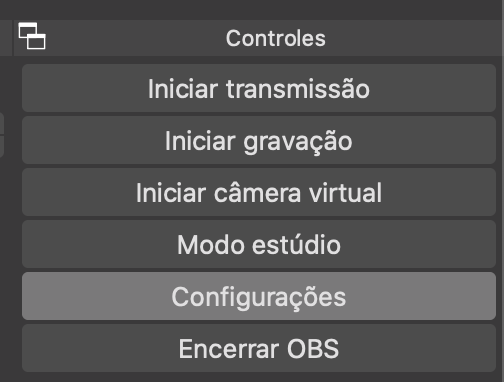
In the settings window, click “Stream”. Then set “Service” to Custom…:
Then enter your live4.tv event data: in “Server” paste the “Streaming URL”, and in “Stream Key” use your event’s “Stream Key”. You copy this data straight from the Live4.tv studio, in the “Streaming Data” area.
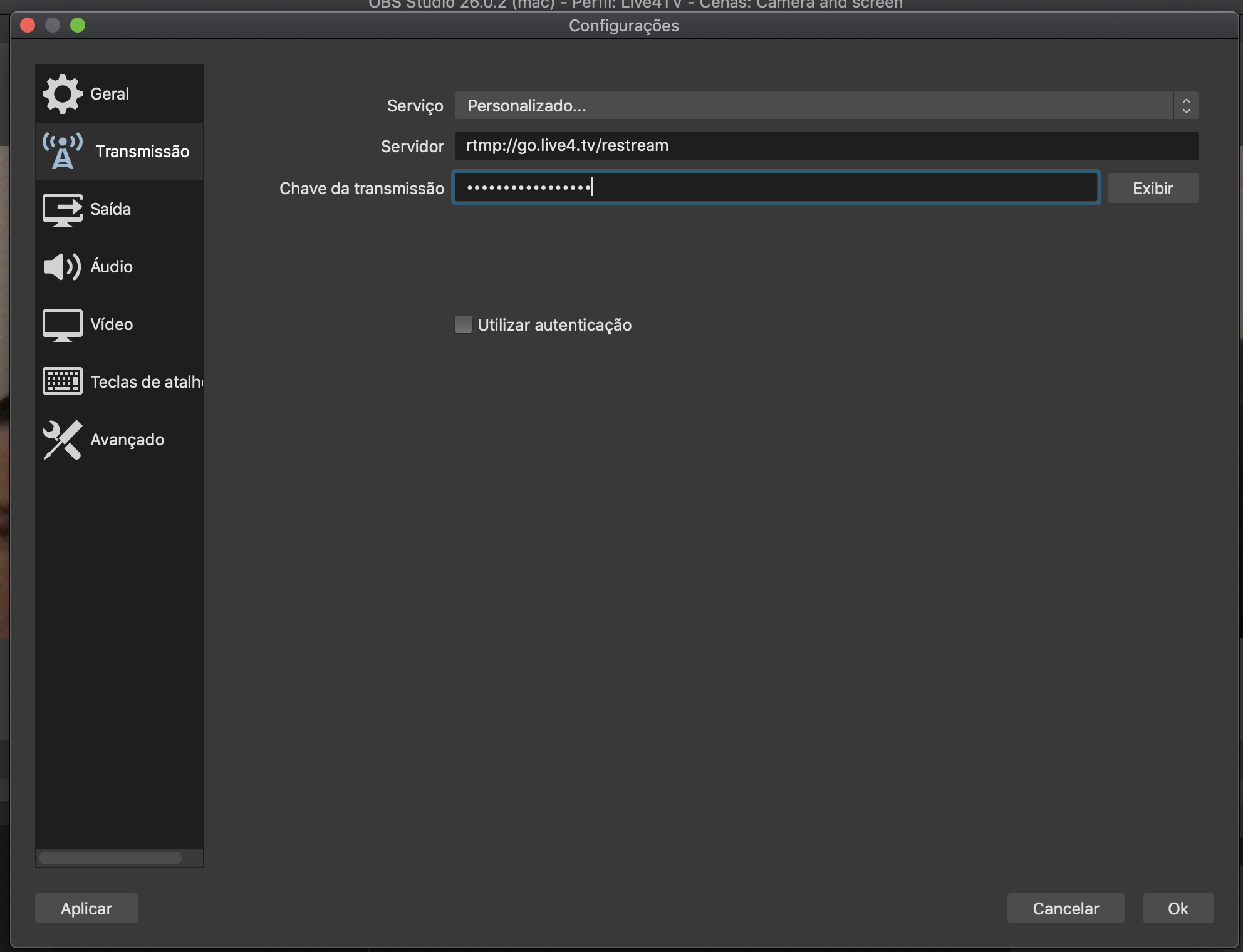
Click “OK” to save.
Step 5: Set up Instagram
In the “Streaming destinations” area, click “+ ADD DESTINATION” and then “+ Add new Instagram”.
Then click the “LOG IN TO INSTAGRAM” button.
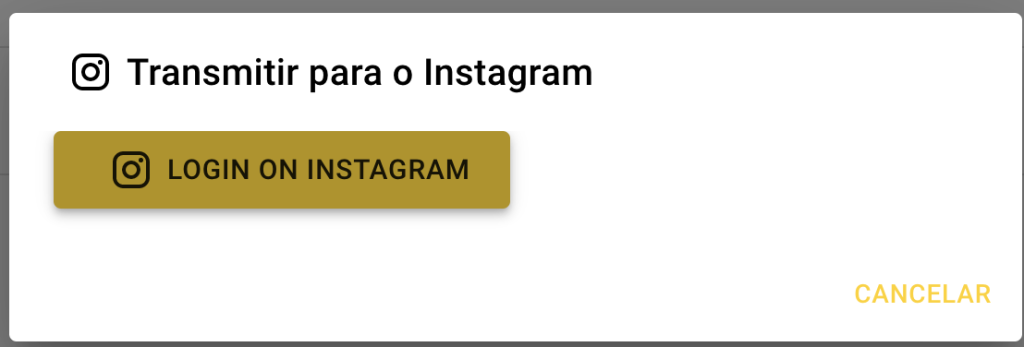
After you click this button, a browser window will open with the Instagram username and password form, as in the image below:
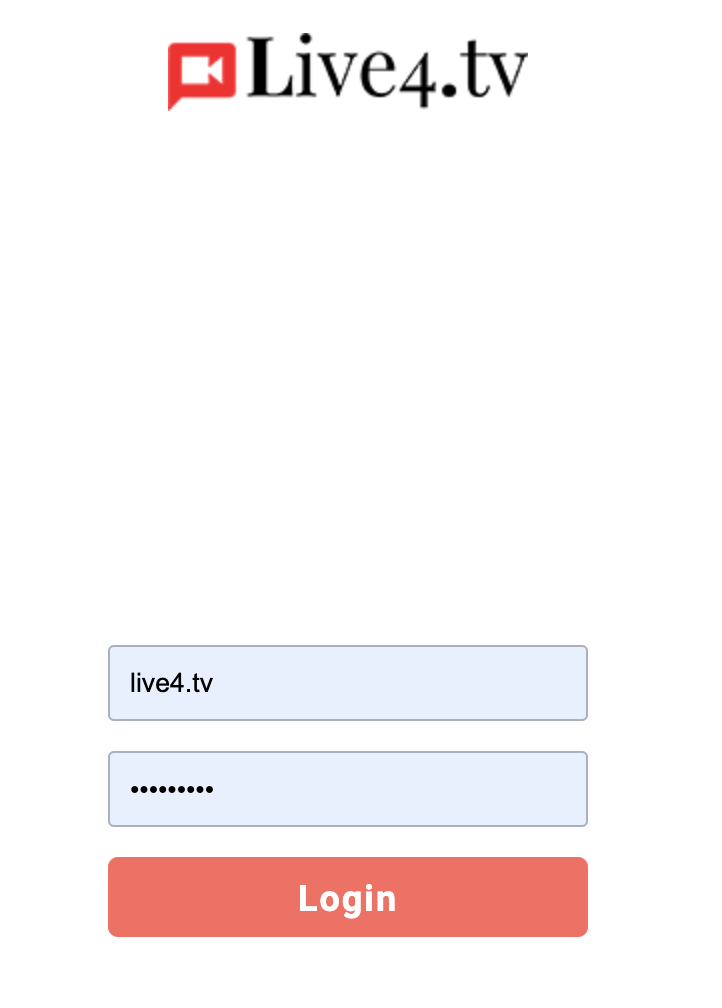
Then just enter your Instagram username and password and click “Log in”.
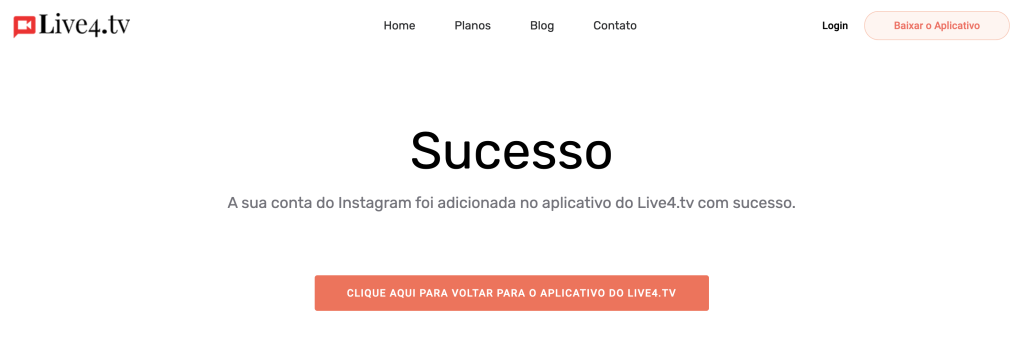
Done. After that, you should see a success screen and can return to the Live4.tv app.
Your account should now appear in the “Destinations” list:

Done, now you just need to start streaming in OBS Studio by clicking “Start Streaming”:

And in Live4.tv by clicking “START ON ALL DESTINATIONS”:

After that, your live stream should be broadcasting to your Instagram account.
If you have any questions, reach us through the contact form or WhatsApp by clicking here, we are happy to help.