
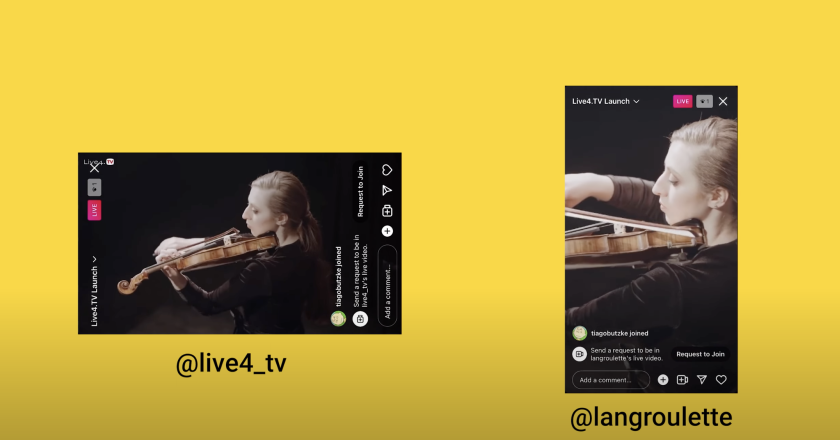
How to fix your live screen format on Instagram and TikTok (horizontal to vertical). This is how it works in 2023!
On YouTube and Facebook the picture is horizontal, but on Instagram and TikTok it’s vertical. How do you adjust the screen? That’s the biggest headache for anyone who wants to go live on all these social networks at once.
So today, in this article, I’ll show you how Live4.tv helps you solve this problem. It’s easy and it works. Even better, no hacky workarounds!
But before we start, take a look at the following video to see how it all works:
IMPORTANT
In this tutorial we’ll use Live4.tv, which runs right in your browser: studio.live4.tv.
The first time you open Live4.tv, you’ll need to create an account.

After creating an account, you can create an event for your live on Live4.tv.

Once you’re in the live studio, you’ll see a right sidebar with some settings for your live. One of them is the screen format of the stream sent to Instagram, as you can see in the following image.

In this dropdown, you can choose from 4 options:
Normal
Live4.tv won’t change the picture it receives and will just redistribute it to Instagram. This option works well if you already stream video in the phone screen format.
Rotate to Horizontal:
If you select this option, Live4.tv will rotate your video to horizontal before sending it to Instagram. Your audience can then watch with their phone turned sideways.
This option is great if you want to give your Instagram audience an experience similar to people watching on a computer.
It’s also useful for content that needs to make better use of the screen space (e.g. an online class or online church service with slides).
Resize at the Top:
When you select this option, Live4.tv will resize your live video and place it at the top of the screen. You can also pick a background of your choice (e.g. with your logo or a sponsor’s logo).
Resize in the Center:
This option is similar to resizing at the top, but the video sits closer to the center of the screen, just above where the comments appear.
So that’s it. By following this simple tutorial, you can stream to Instagram the same live that’s going to YouTube and Facebook, but in a screen format that works for your audience.
If you have any questions, you can contact us by clicking here.