
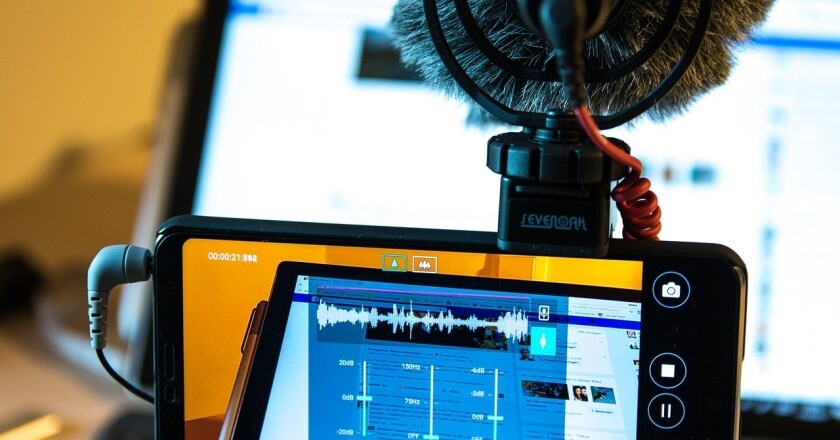
How to use your phone as a webcam and save money
A live stream with a perfect picture, like a pro, without spending an extra cent on cameras! Yes, you can! Just use your phone as a webcam.
With your own smartphone you can probably get image quality close to what you would get with very expensive cameras. Shall we save that money?
In this article I will show you how to use your own phone, or several phones, to capture the video for your live streams and broadcast with OBS Studio to multiple social networks at the same time.
It is very simple. And once you have set it up the first time, you just use it.
Let’s go!
You will need
- The free OBS Studio app
- An active Live4.tv account (if you want to stream to YouTube, Facebook, Instagram, TikTok, etc. at the same time).
- The free Droidcam OBS app on your phone
- The Droidcam plugin for OBS
Now let’s go step by step.
Step 1: Set up the computer
On the computer, we will use OBS Studio, a powerful, free studio program for real-time broadcasting.
You can download OBS Studio at obsproject.com and follow the usual installation steps.
Step 2: Set up your social networks on Live4.tv
Live4.tv runs right in your browser, with nothing to install: go to studio.live4.tv.
Then you will need to sign in with an existing account or create a new one.
As soon as you log in, you will see the Live4.tv events page. There you can create your first event by clicking “CREATE AN EVENT”.

It is important to know that whatever you enter as the event “Title” and “Description” is what will be posted on your social networks when you start your live stream.

After you create your Live4.tv event, you will be automatically redirected to the studio screen (as in the image below).

The most important sections of the studio screen are:
Stream Data:
Where you find the settings for your OBS Studio, so that it streams to the Live4.tv servers.
Streaming destinations:
Here you can set up the networks Live4.tv will distribute your live stream to (multistreaming).
Settings:
In this area you can configure your live stream (screen format for Instagram, YouTube quality, etc.).
Step 3: Set up OBS Studio
You need to set up OBS so that it streams to Live4.tv. Just open the settings window in OBS Studio by clicking “Settings”.
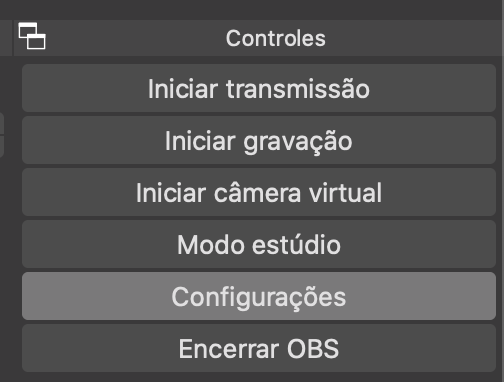
In the settings window, click “Stream”. Then select “Service”: Custom…:
Then enter your live4.tv event data: in “Server” paste the “Stream URL”, and in “Stream Key” use your event’s “Stream Key”. You can copy this data directly from the Live4.tv studio, in the “Stream Data” area.
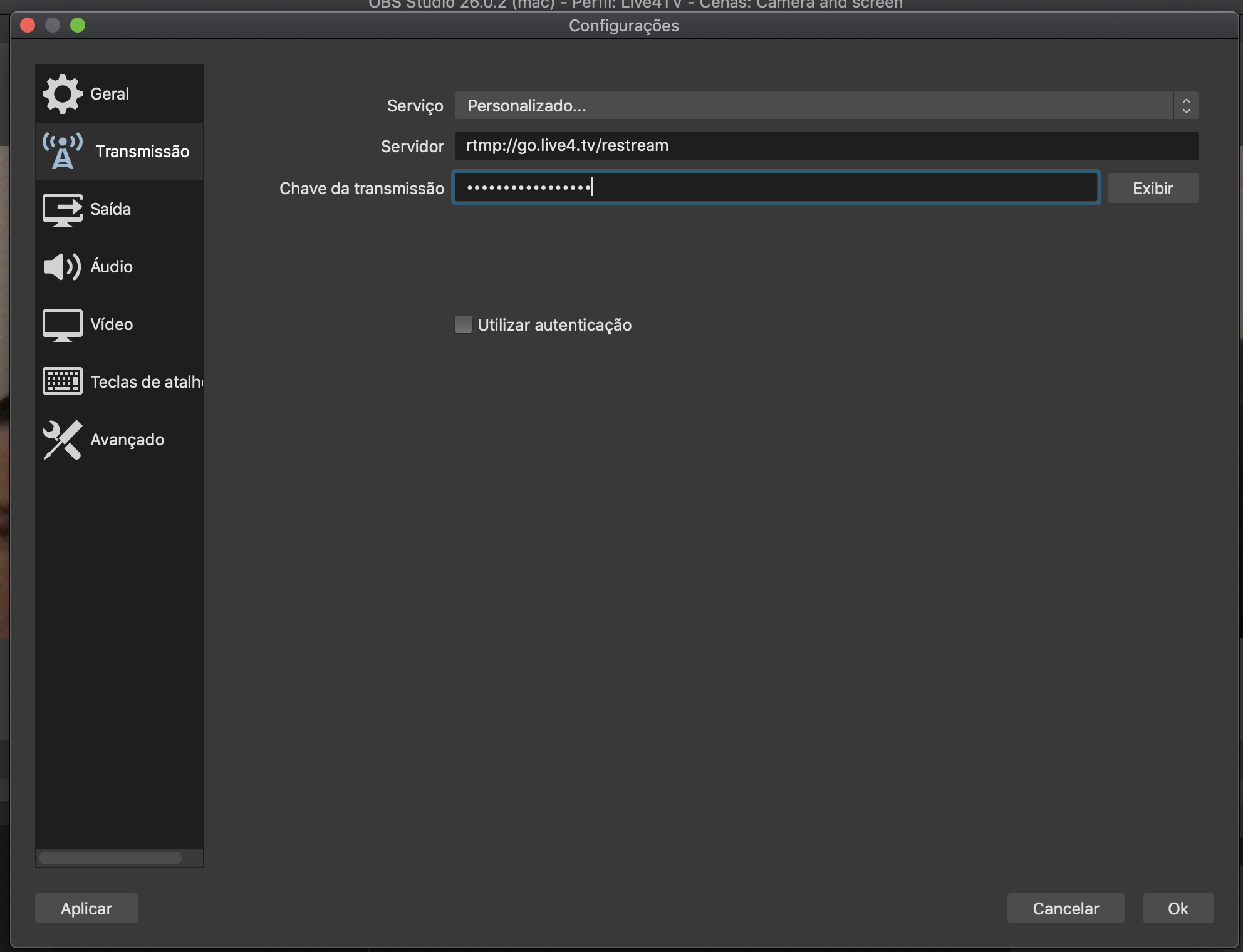
Click “OK” to save.
Step 4: Use your phone as a webcam
There are several ways to connect your phones to the computer. If you have a long enough USB cable, using the cable is the simplest way.
But if you do not have a long enough cable, here we explain how to use your own Wi-Fi network to connect your phone to your computer.
- Make sure the phone and the computer are both connected to the same Wi-Fi network.
- On your phone: Download the Droidcam OBS app by clicking here www.dev47apps.com/obs. This app turns your phone camera into a webcam.
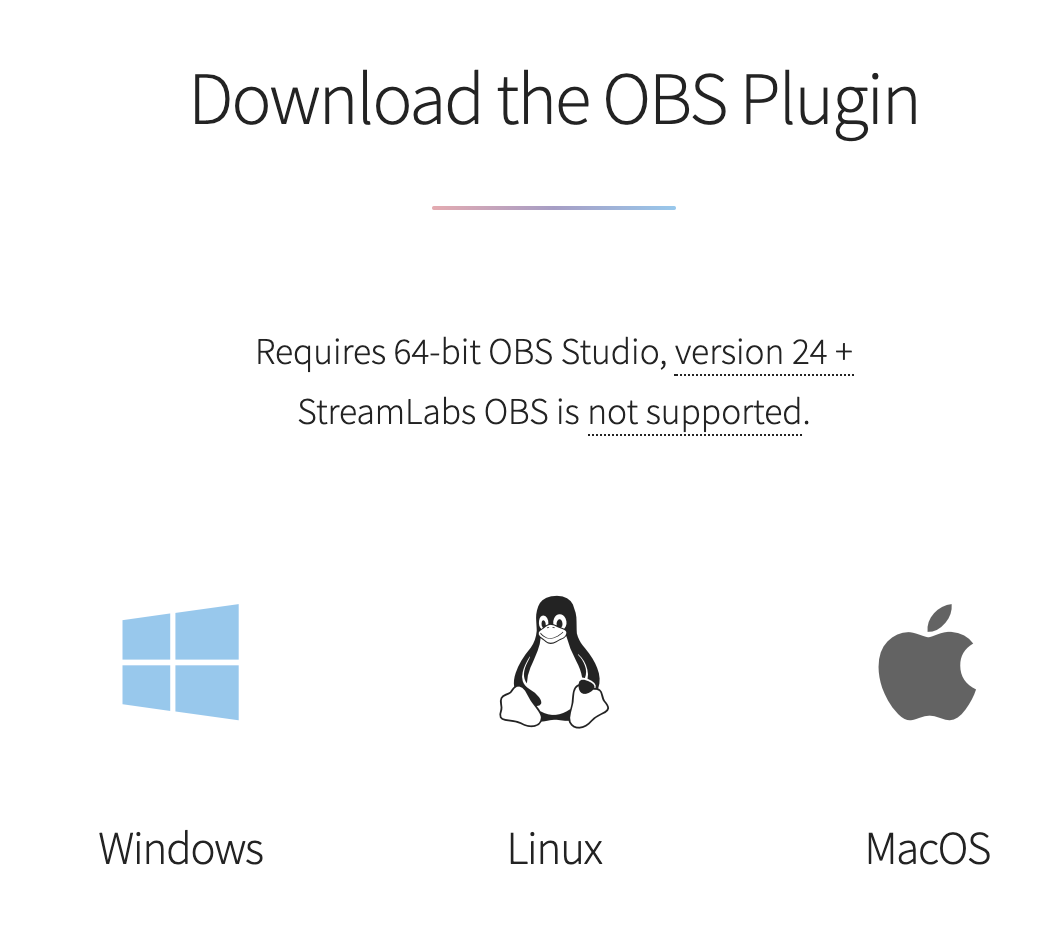
- On the computer: Download the Droidcam OBS plugin for OBS by clicking here https://www.dev47apps.com/obs/. Then follow the usual installation steps.
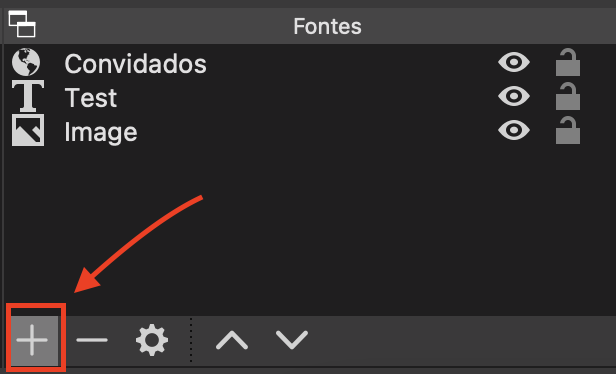
- After installing the Droidcam OBS plugin on the computer, open OBS Studio on the computer and click the “+” icon to add a new video source
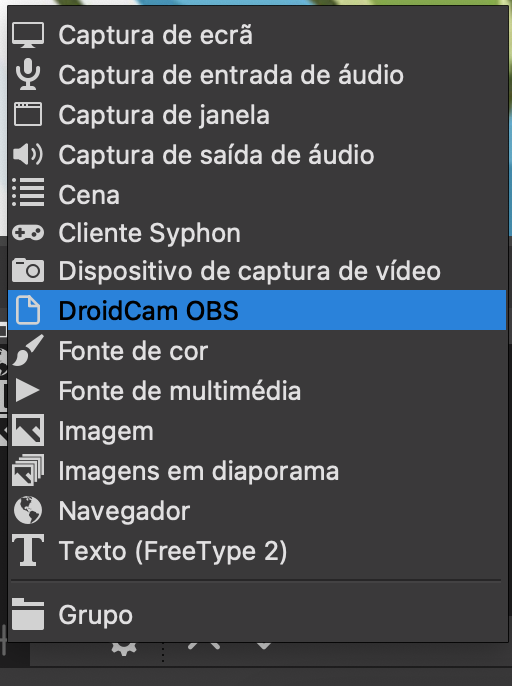
- Then select Droidcam OBS and give the video source any name you like to identify it.
- Make sure the phone and the computer are on the same Wi-Fi network. Then, on the computer, under Wifi IP, enter the IP shown on your phone screen.
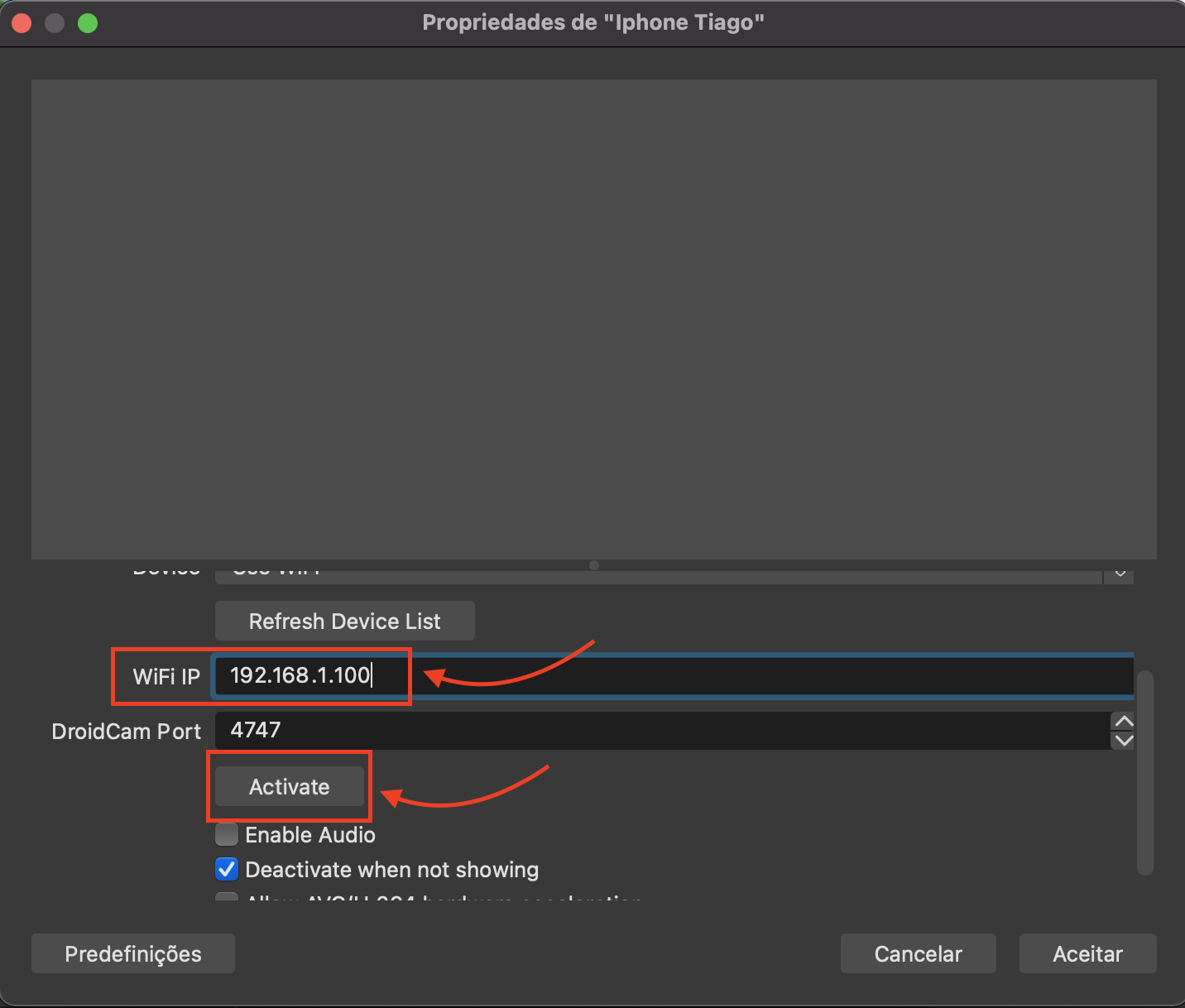
- You will then see your phone camera’s image in OBS Studio.

Done, your video is set up.
Select the device you want and click “OK”.
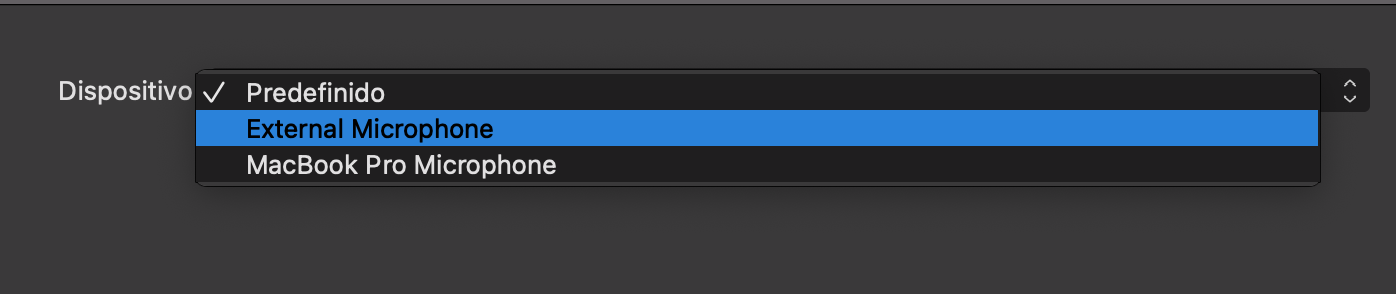
Done. Your audio and video are set up in OBS and ready to stream.
Step 5: Start streaming in OBS and in Live4.tv
Now you just need to start streaming in OBS Studio by clicking “Start Streaming” and in Live4.tv by clicking “START ALL TARGETS”.


At this point, your live stream should be multistreaming to Instagram, Facebook and YouTube. And you are using your phone as a webcam to capture the video for your live stream.
Also see our step-by-step tutorial on how to use Live4.tv by clicking here. Or get in touch with us by clicking here.
Happy streaming!