
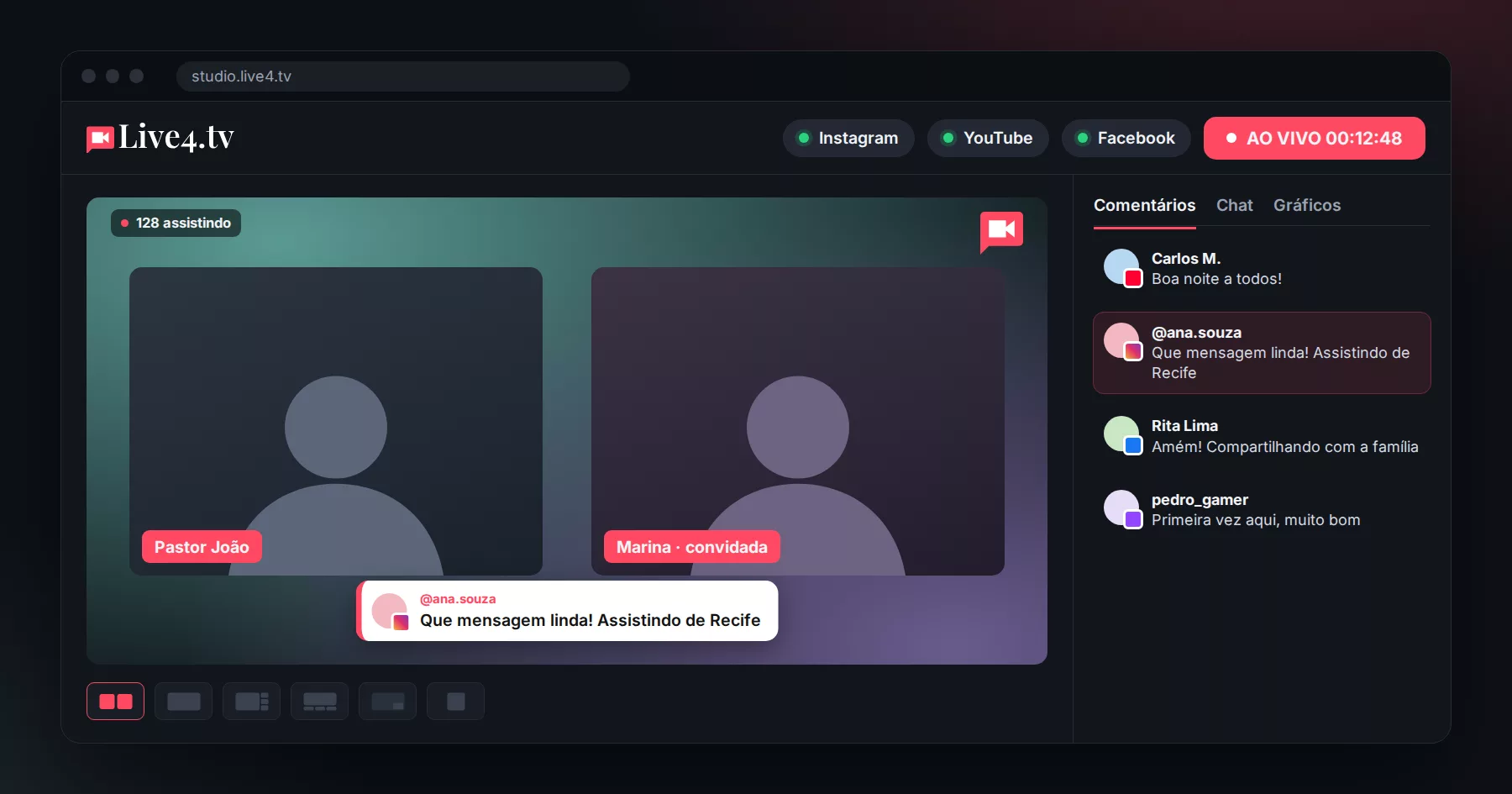
Live stream with guests without OBS: the easiest way
For a long time, going live with guests in OBS Studio required a workaround: opening a call in another tool (such as VDO.Ninja), capturing each guest as a browser source and building the scenes by hand. It worked, but it was a lot of work and any mistake showed up on the live.
Today there’s a much simpler way: Live4.tv’s Live Studio. You invite people with a link, they join from their browser, and you stream to Instagram, YouTube, Facebook, TikTok, Twitch and any RTMP destination at the same time, without needing OBS.
OBS + call tool vs. Live Studio
| OBS + VDO.Ninja (or similar) | Live Studio | |
|---|---|---|
| Installation | OBS on your computer | Nothing, all in the browser |
| Guest | External link, one source per person | Invite link, no account needed |
| Building the screen | Manual scenes and sources | Six ready-made layouts, switch with one click |
| Backstage | No | Yes, the guest only appears when you put them on air |
| On-screen comments | Extra source in OBS | One click on the comment |
| Computer | Needs to be powerful | Video mixing is done on our servers |
How to go live with guests in Live Studio
- Go to studio.live4.tv, create an event and open Live Studio.
- Allow camera and microphone access and check that they’re working.
- Copy the invite link and send it to your guest (via WhatsApp, for example).
- The guest opens the link in their computer or phone browser, allows camera and microphone access and joins the backstage. They don’t need to create an account or install anything.
- When it’s time, put the guest on air with one click.
- Choose the layout, adjust logo, colors and background, select the destinations and click Go live.
What you control during the live
- Who’s on air: add and remove guests from the stream at any time;
- Layout: grid, full screen, spotlight with sidebar, spotlight with bottom row, picture-in-picture or single person;
- Screen sharing, to show a presentation or a website;
- Private chat with guests that the audience can’t see;
- Each participant’s name on screen and audience comments on the video, in your brand colors.
How many guests can I invite?
It depends on the plan:
| Plan | Guests in the studio | Studio quality |
|---|---|---|
| Mini | 1 | 720p |
| Standard | 3 | 720p |
| Professional | 5 | 1080p |
| Premium | 9 | 1080p |
What if I want to keep using OBS?
Sure, no problem: your event still has a server and stream key for OBS, vMix or other software. But for lives with guests, Live Studio solves in minutes what took an afternoon of setup in OBS.
Start free: 7-day trial on any of our plans.