
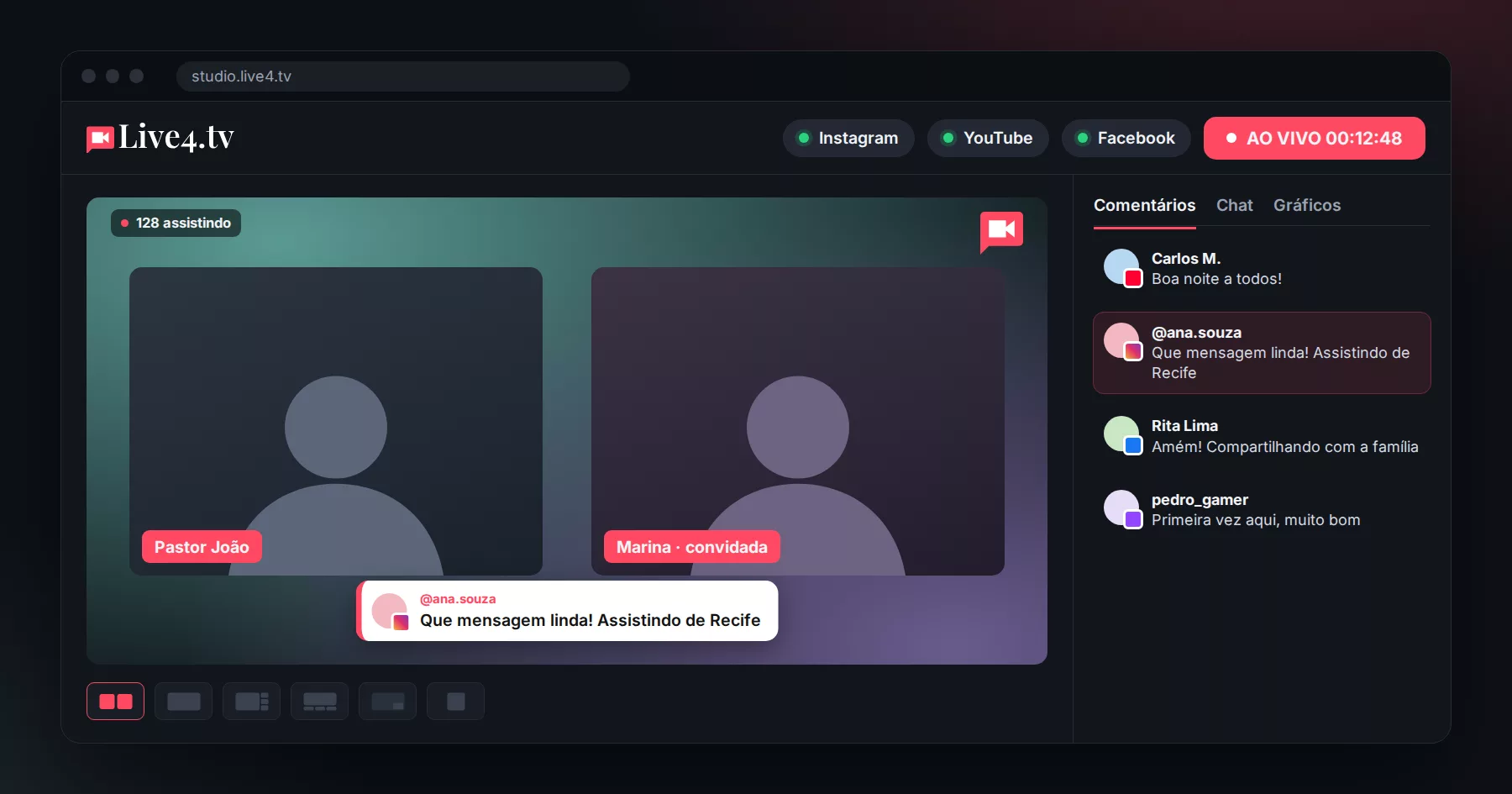
Live streams with guests on Instagram and TikTok (and every network at once)
Live streams with guests on Instagram and TikTok have always been limited: in the app you can only invite a few people, only on that network, and there’s no way to put your brand on screen. That’s why many people built workarounds with call tools (like Jitsi) streaming via RTMP to Live4.tv.
Now it’s easier: with Live4.tv’s Live Studio you invite guests with a link and stream the same live, with everyone on screen, to Instagram, TikTok, YouTube, Facebook, Twitch and any RTMP destination at the same time.
How it works
You and your guests join Live Studio from the browser. The studio arranges everyone on screen in the layout you choose and sends a single video to every network. For Instagram and TikTok, Live4.tv converts the video to vertical format, the way you set it in the destination settings.
Step by step
- Go to studio.live4.tv, create an event and open Live Studio.
- Allow camera and microphone access and check that they’re working.
- Copy the invite link and send it to your guest (via WhatsApp, for example).
- Your guest opens the link in the browser on their computer or phone, allows camera and microphone access, and enters the backstage. They don’t need to create an account or install anything.
- When it’s time, put your guest on air with one click.
- Choose the layout, adjust your logo, colors and background, select the destinations and click Go live.
Before streaming on Instagram and TikTok
- Instagram: the account must be a professional account (creator or business). Connect the account under Destinations and choose the screen format in the destination settings.
- TikTok: you connect by scanning a QR code with the TikTok app, and TikTok itself only allows going live from a computer for accounts with around 1,000 followers. TikTok is available from the Professional plan up.
- For better framing in vertical format, use the single person or spotlight with row below.
What else you can do
- Keep your guest backstage until the right moment;
- Talk to your guests in a private chat;
- See comments from every network in one panel and show a comment on the video, in your brand colors;
- Add a logo, background and overlay.
How many guests can I invite?
| Plan | Guests in the studio | Studio quality |
|---|---|---|
| Mini | 1 | 720p |
| Standard | 3 | 720p |
| Professional | 5 | 1080p |
| Premium | 9 | 1080p |
Start free: a 7-day trial on any of our plans.