

How to show live comments on screen (OBS and Live Studio)
Showing audience comments on screen makes your live much more interactive: people who comment feel part of the stream, and more people are encouraged to join in. In this tutorial you’ll see how to:
- follow comments from every social network in one place;
- put comments on your live in OBS Studio, using the Live4.tv comments overlay;
- or, if you’d rather not use OBS, show a comment on screen with one click in Live Studio.
1. Comments from every network in one place
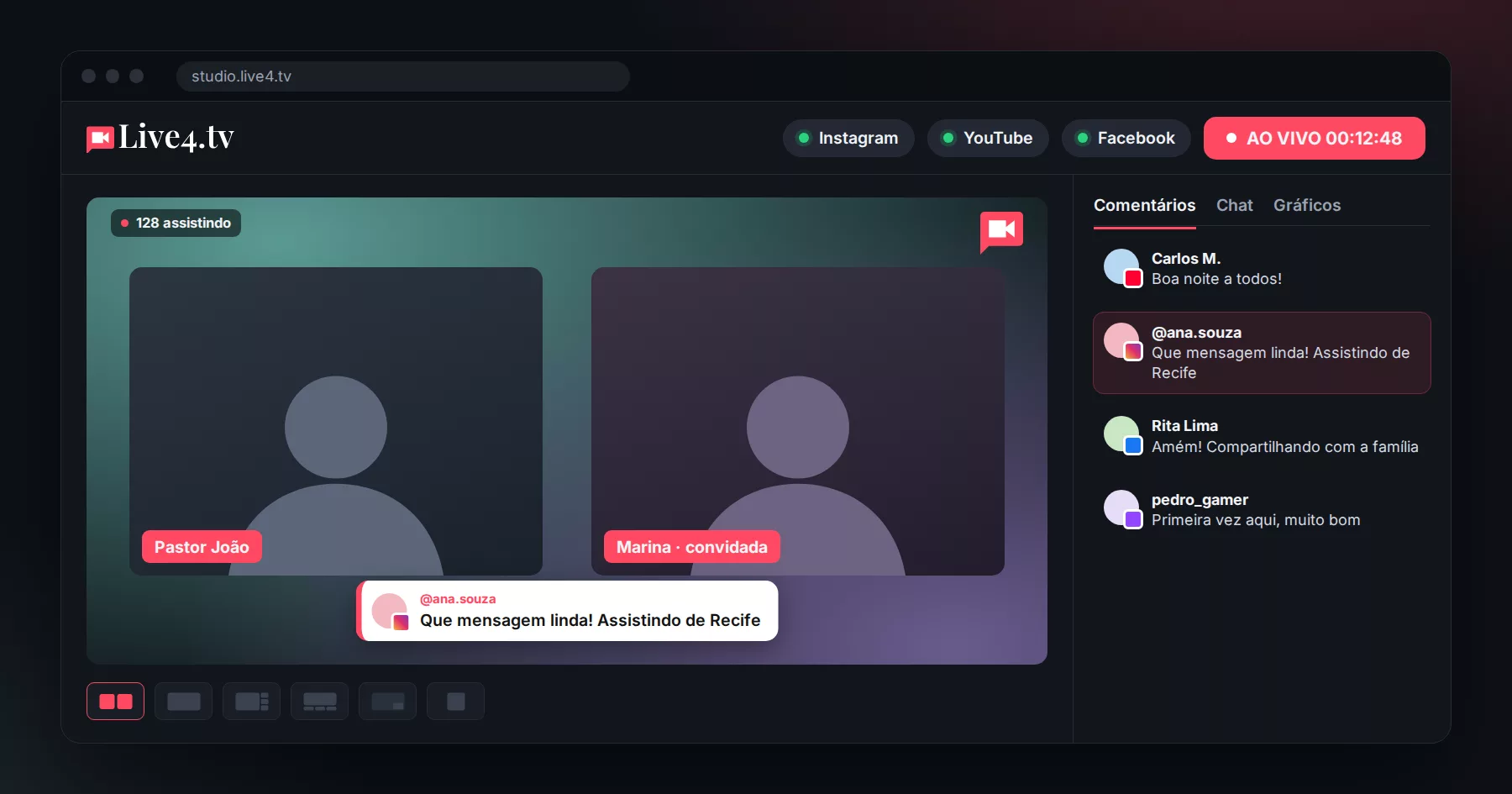
When you stream with Live4.tv, comments from Instagram, YouTube, Facebook, TikTok and Twitch all arrive together in the studio’s Comments panel, at studio.live4.tv. Each comment shows which network it came from, and you can reply right from the panel: your reply goes to the live’s networks.
2. Comments on your live with OBS (overlay)
Live4.tv generates a link with your live’s comments, ready to use as an overlay in OBS:
- In the studio menu, open Widgets & Overlays.
- Click Open comments link. A new tab will open with the comments; copy that tab’s address.
- In OBS Studio, under Sources, click the + and choose Browser.
- Give it a name (for example, “Live4.tv Comments”), paste the address into the URL field and adjust the width and height.
- Click OK and position the comments box wherever you want in your scene.
Done: new comments will show up on your live automatically. You can also open the same link on a big screen or a phone, so whoever is presenting can follow the comments without looking at the computer.
If you haven’t set up OBS with Live4.tv yet, see our guide OBS Studio for beginners.
3. No OBS: a comment on screen with one click
In Live Studio, the Live4.tv studio that runs in your browser, you don’t need to set up any of this. Comments from every network appear in the panel next to the video, and when you click a comment, it appears on the video, in your brand colors, on every network at the same time.
Learn more in the post New Live Studio.
After the live: download all the comments
When you’re done, you can download all the live’s comments as a spreadsheet, great for answering questions, capturing leads and closing sales. See how in How to download all the comments from your live?
Start for free: a 7-day trial on any of our plans.