
How to stream from Stream Yard to Instagram
If you already use Stream Yard and have always wondered how to stream a live from Stream Yard to Instagram and also keep the live saved on your Instagram profile, you are in the right place.
So in this short tutorial I will show you how to stream your live directly from Stream Yard to Instagram. Just follow the steps below and everything will work.
Above all, going live on Instagram from your PC is a good way to gain Instagram followers for free, and it also helps grow your live audience on other networks. Besides, we all know Instagram’s Creator Studio is very limited; if you want to do something truly professional, you need to use an external studio tool.
Although Stream Yard is a studio option, if you are also interested in a free option, check out our tutorial on how to use OBS to go live in just 5 simple steps.
OK, enough talk, let’s get to the tutorial.
Step 1: Open and set up Live4.tv
First, to connect to Instagram, we will use the Live4.tv app. If you do not use Live4.tv yet, open it right in your browser, with nothing to install: studio.live4.tv.
When you open it, if you do not have a Live4.tv account yet, you will need to create one. Otherwise, just log in to your Live4.tv account.

Step 2: Create an event in Live4.tv
Now, to generate the stream data you will use in Stream Yard, we need to create an event in Live4.tv. To do that, just click the “CREATE AN EVENT” button, as highlighted in the image below:

Then enter a title and description for your event. Importantly, the title and description you set here are the ones that will be posted on your social network.

Step 3: Set up Stream Yard
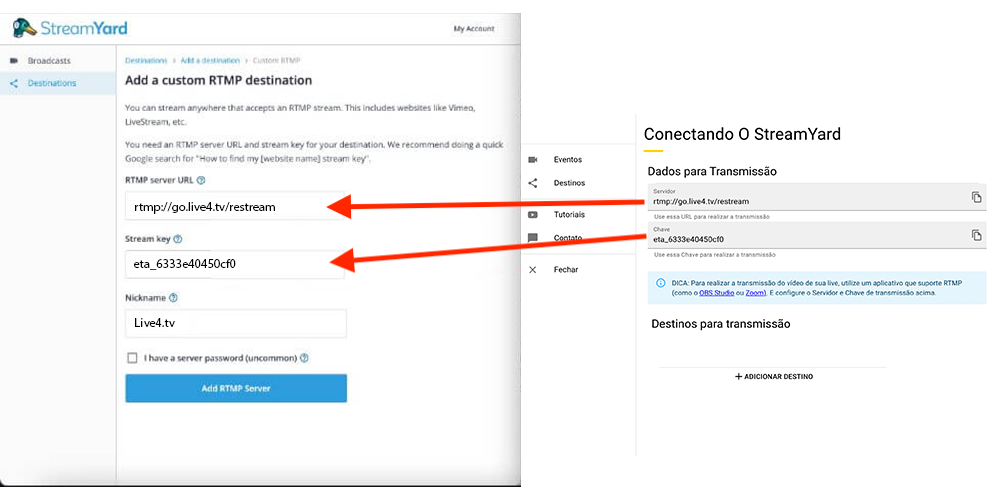
When you open the studio screen of your Live4.tv event, you will see an area called “Stream Data”. There you will find a URL and a Stream Key that you will use to set up a “Custom RTMP” in Stream Yard, as in the images below:


Step 4: Set up the Instagram account
Now you need to add your Instagram account to your Live4.tv event. To do that, just click “+ ADD TARGET” and then “+ Add new Instagram”.
You will then need to enter your Instagram username and password and click “ADD”.

Important information:
- Instagram does not offer an official way to stream from an external app. So Live4.tv integrates with Instagram by acting as if it were the Instagram app itself.
- Live4.tv never sends your login details to our servers; all communication goes directly from the Live4.tv app to Instagram. No intermediaries such as proxies!
Step 5: Start streaming
Now you just need to start streaming in Stream Yard and in Live4.tv, by clicking “Go Live” in Stream Yard and “START ALL TARGETS” in Live4.tv.


Step 6 (optional): Extra settings for Instagram
The Live4.tv app also offers some extra settings, such as choosing the screen format for the Instagram stream and keeping the live saved on your Instagram profile.
For more details on the available screen formats, see our other post on setting the screen format for Instagram.
And to save the live recording on your Instagram profile, just leave the option to save and publish the recording turned on in the Instagram destination settings in Live4.tv.

If you would like any help with your live streams, feel free to contact us through our contact form here on the website or via WhatsApp.